
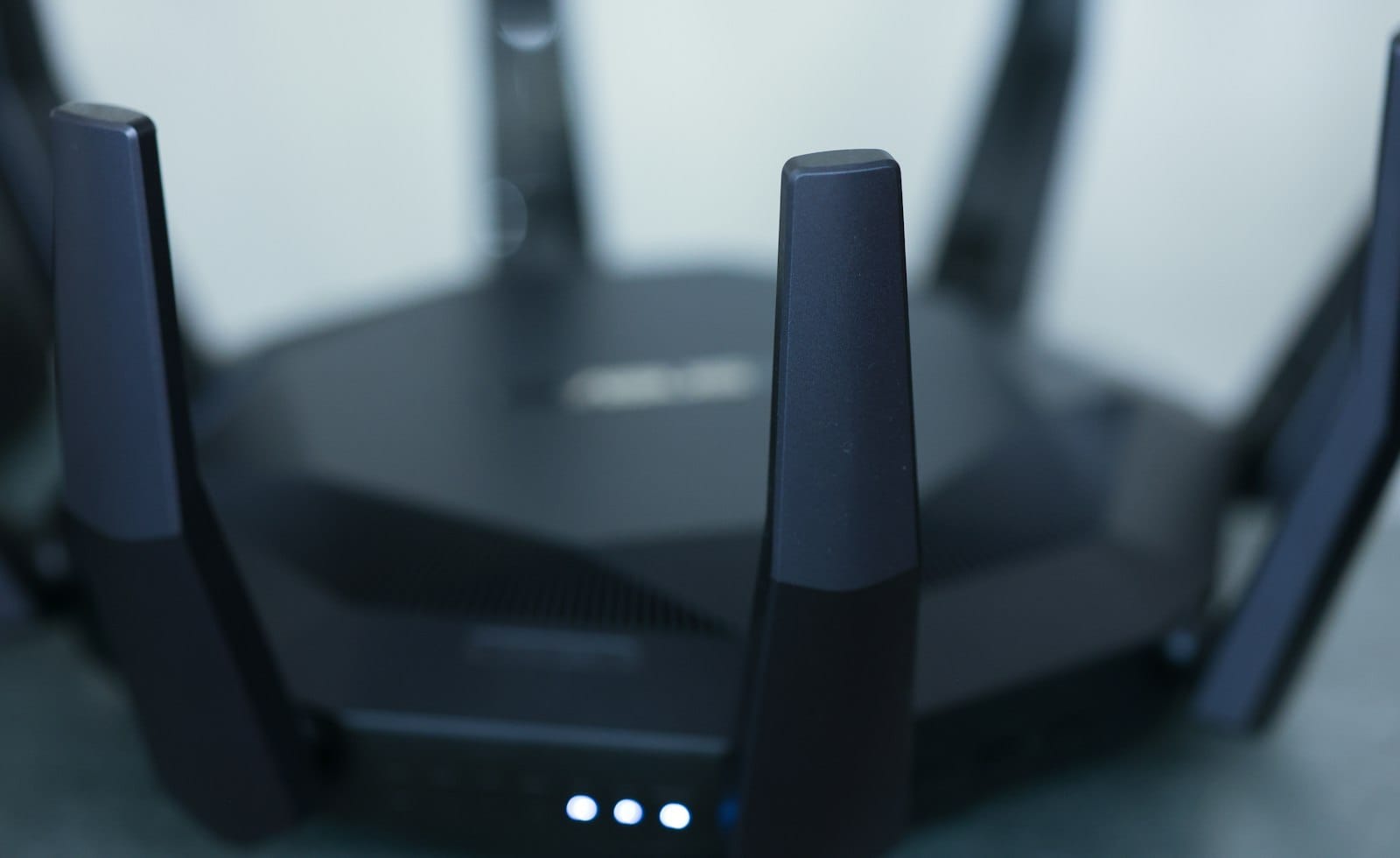
Yes, you probably need a guest Wi-Fi network, and it takes about ten minutes to set up. A guest network is a second, separate Wi-Fi name on your router that gives visitors internet access without letting them near your laptops, phones or shared files. With the holiday season approaching and more people dropping by, now is a good time to sort it out.
What a guest Wi-Fi network actually does
Your main Wi-Fi connects everything you own: computers, phones, printers, TVs and perhaps a storage drive. A guest network sits beside it and is kept apart from those devices. Visitors can browse and stream, but they cannot see your other devices or open your router settings.
It also means you never have to hand out your main password. Once a password has been shared with a dozen people over the years, you have no idea which phones or laptops still know it.
Who should be on the guest network
The obvious users are friends, family, babysitters and anyone else who does not live with you. Public security guidance, such as the home Wi-Fi advice from the US cybersecurity agency CISA, suggests that anyone who does not routinely use your home Wi-Fi should join the guest network instead.
The same guidance says smart home gadgets that only need internet access belong there too. Think smart plugs, robot vacuums, connected speakers and cheap cameras. If one of them ever has a weakness, it cannot easily reach your laptop or your router settings.
How to set up a guest Wi-Fi network step by step
Menus differ between routers, but the steps are almost always the same:
- Open your router’s settings page. The address and login are usually printed on a sticker on the router, or in your provider’s app.
- Look for a menu called Guest Network, Guest Wi-Fi or Visitor Network, often under Wireless or Wi-Fi settings.
- Switch it on and give it a clear name, such as the family name followed by “Guest”. Avoid putting personal details in the name.
- Choose WPA3 or WPA2 security with AES encryption and set a long, unique password that differs from your main one.
- Make sure the option that lets guests see other devices on the network is turned off. It may be called client isolation or access to the local network.
- Save the settings and test by joining the guest network from a phone and checking that the internet works.
Settings worth checking while you are in there
Since you already have the router menu open, spend a few extra minutes on the basics. Change the default router admin password if you never have, because default logins are easy to find online. The state of Massachusetts explains this in its guide to securing your home network, which also recommends turning off remote management unless you really use it.
Check for a router firmware update too, and enable automatic updates if the option exists. Updates fix known weaknesses, so they are one of the easiest wins on the whole page.
Make guest access easy for visitors
A security feature nobody uses is no help, so make joining effortless. Most phones can generate a QR code for a Wi-Fi network, which visitors scan with their camera. Print it and keep it in a drawer or frame it in the hallway. You can also write the network name and password on a small card.
Change the guest password now and then, for example after a big party or once a season. Because nothing important lives on the guest network, changing it is painless: only the guests need the new password. If you travel, our guide to using offline maps for travel without mobile data pairs well with a few minutes of router housekeeping before you leave.
When a guest network is not enough
Not every router offers a guest network. Some older models and a few provider-supplied boxes leave it out. If yours does not have one, check whether your provider can enable it, or consider a newer router. The CISA advice says that if your router only supports weak encryption such as WEP or the older WPA, you should contact your provider about an upgrade.
Remember too that a guest network protects your devices, not your accounts. Keep your own logins safe with strong passwords and sensible app settings, which we cover in our post on social media privacy settings and the mistakes to avoid. If a full phone is the reason you keep asking for Wi-Fi, see why your phone storage is full and how to free it up.
Frequently asked questions
Will a guest network slow down my internet?
It shares your connection, so heavy use by guests can reduce speed for everyone. Many routers let you limit guest bandwidth if that becomes a problem.
Can guests see my files and printer?
Not if the guest network is isolated from your main network. Check that the setting for access to the local network is switched off, and test it by trying to reach your printer from a guest phone.
Should smart home devices use the guest network?
Devices that only need the internet usually can go there. Ones that need to talk to your phone or each other on the local network may not work properly, so move them back if something stops responding.
Your next step
Open your router settings this week, switch on the guest network, set a fresh password and make a QR code for visitors. It is a small job that keeps your main devices out of reach and makes hosting a little smoother.