
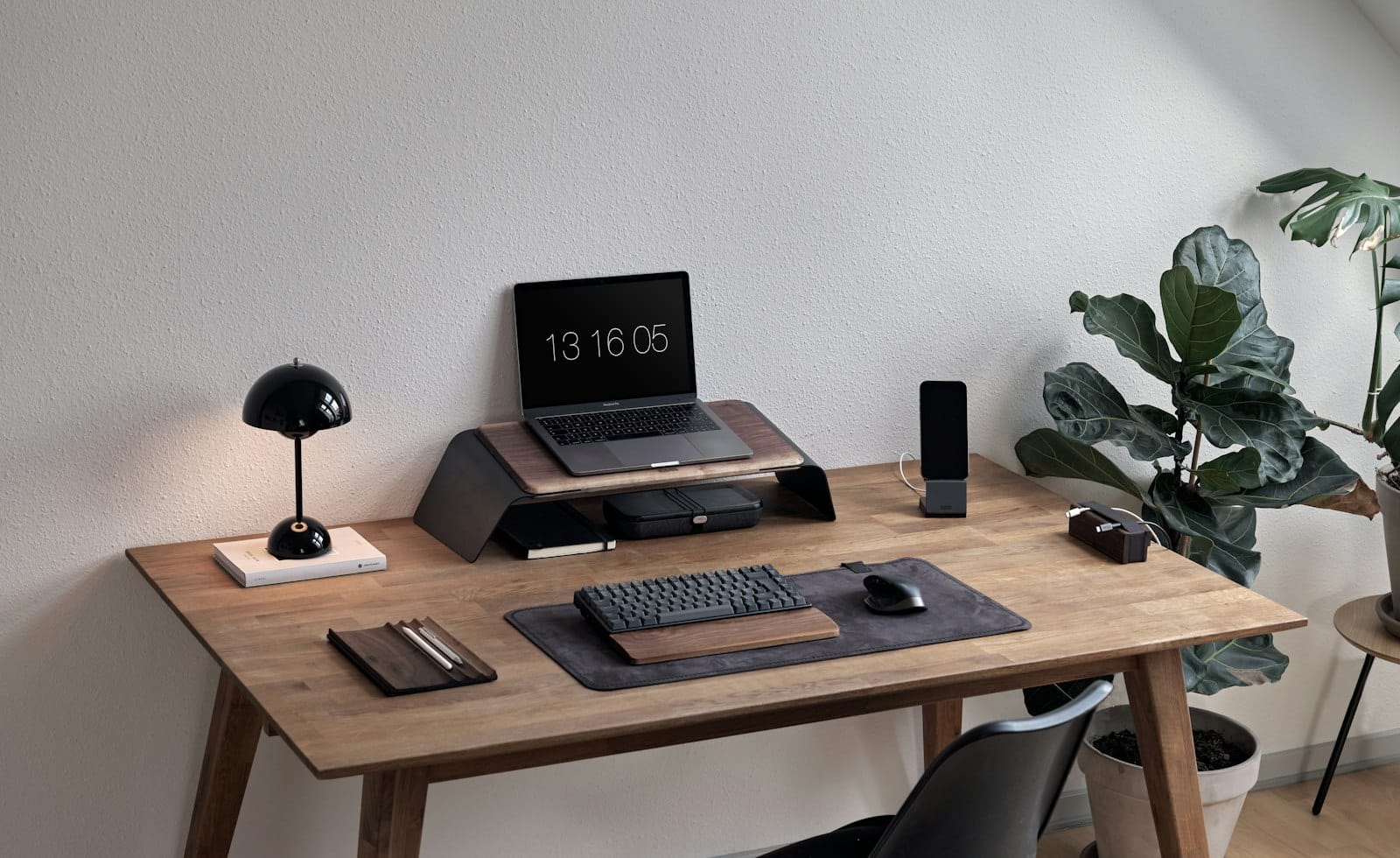
A shiny new phone, laptop or tablet is exciting, and that is exactly why people rush its setup. A careful new device setup takes about an hour and comes down to four jobs: update first, secure your accounts, move your data safely and turn off what you do not need. Skip them and you will be fixing problems for months.
Mistake 1: Skipping the First Update
Most devices ship with software that is weeks or months old. Connect to Wi-Fi, open the settings and install every available update before you do anything else. The US cybersecurity agency CISA explains in its guidance on updating software that updates often fix security flaws, so putting them off with a “remind me later” tap leaves the door open.
While you are there, switch on automatic updates. Search the settings for “automatic updates” and turn it on for the system and for your apps, so you never have to think about it again.
Mistake 2: Keeping Default Passwords
Phones sign in with your own account, but routers, smart speakers, cameras, game consoles and many accessories arrive with a default username and password. Change them straight away to something long and unique. A password manager makes this painless, because it remembers every one for you.
- Use a different password for every account and device.
- Prefer a long phrase of several random words over a short, complicated one.
- Turn on two-step verification wherever the service offers it.
- Keep recovery email addresses and phone numbers up to date.
Mistake 3: Moving Data Before Backing Up the Old Device
The classic mistake is wiping or selling the old device before the new one is fully working. First back up the old device, then transfer, then check that photos, contacts, messages and key apps arrived. Only after a week of normal use should you reset and pass on the old one.
If your photos mostly live in social apps, take a moment to save the originals too. Our guide to backing up social media photos shows how to request your data and keep two copies.
Mistake 4: Accepting Every Default Setting
Factory settings are designed for the average person, not for you. Spend ten minutes going through the main menus and make a few quick choices.
- Open the privacy settings and review what each app can see, such as location, camera, microphone and contacts.
- Switch off notifications you will never read, so the device stays calm.
- Set a screen lock with a PIN or biometric option, and avoid a simple pattern.
- Turn on the “find my device” feature so a lost device can be located or locked.
Mistake 5: Installing Everything at Once
It is tempting to reinstall every app you have ever used. Resist it. Install only what you used last week, then add others as you need them. A lean start keeps the device fast and your phone storage under control from day one, instead of becoming a cleanup job next spring.
Mistake 6: Forgetting the Home Network
A new smart plug, speaker or camera joins your Wi-Fi and can become the weakest link in your home. If you add several gadgets, put them on a separate network from your laptop and phone. We explain how in our quick guest Wi-Fi setup guide, and the same trick works for smart devices.
Mistake 7: Throwing Away the Paperwork Too Soon
Keep the box and receipt for at least the return window, and take a photo of the serial number and warranty card. Put the photos in a folder called “device paperwork” so you can find them in seconds if something goes wrong. Also keep the original charger and cable together, because mixing them up is a common reason for slow charging.
A Simple First-Hour Checklist
- Charge the device and connect to a trusted Wi-Fi network.
- Install all system updates and enable automatic updates.
- Sign in, set a strong lock and turn on two-step verification.
- Transfer data from a fresh backup and check it all arrived.
- Review privacy and notification settings.
- Install only the apps you use every week.
- Save the receipt, serial number and warranty details.
Frequently Asked Questions
How long does a new device setup take?
Plan for roughly an hour for a phone or tablet and a little longer for a laptop. Most of that time is downloading updates and restoring data, so you can do other things while it runs.
Should I install updates before or after moving my data?
Update first. Starting with current software avoids compatibility problems when your data and apps are restored.
Do I need to reset the old device straight away?
No. Keep it untouched for a week or so until you are certain nothing is missing, then reset it using the maker’s instructions.
Your Next Step
Pick the device you are about to unbox, or the one you set up too quickly, and run through the checklist above. Most of these jobs take only a few minutes, and they make every future day with that device smoother and safer.