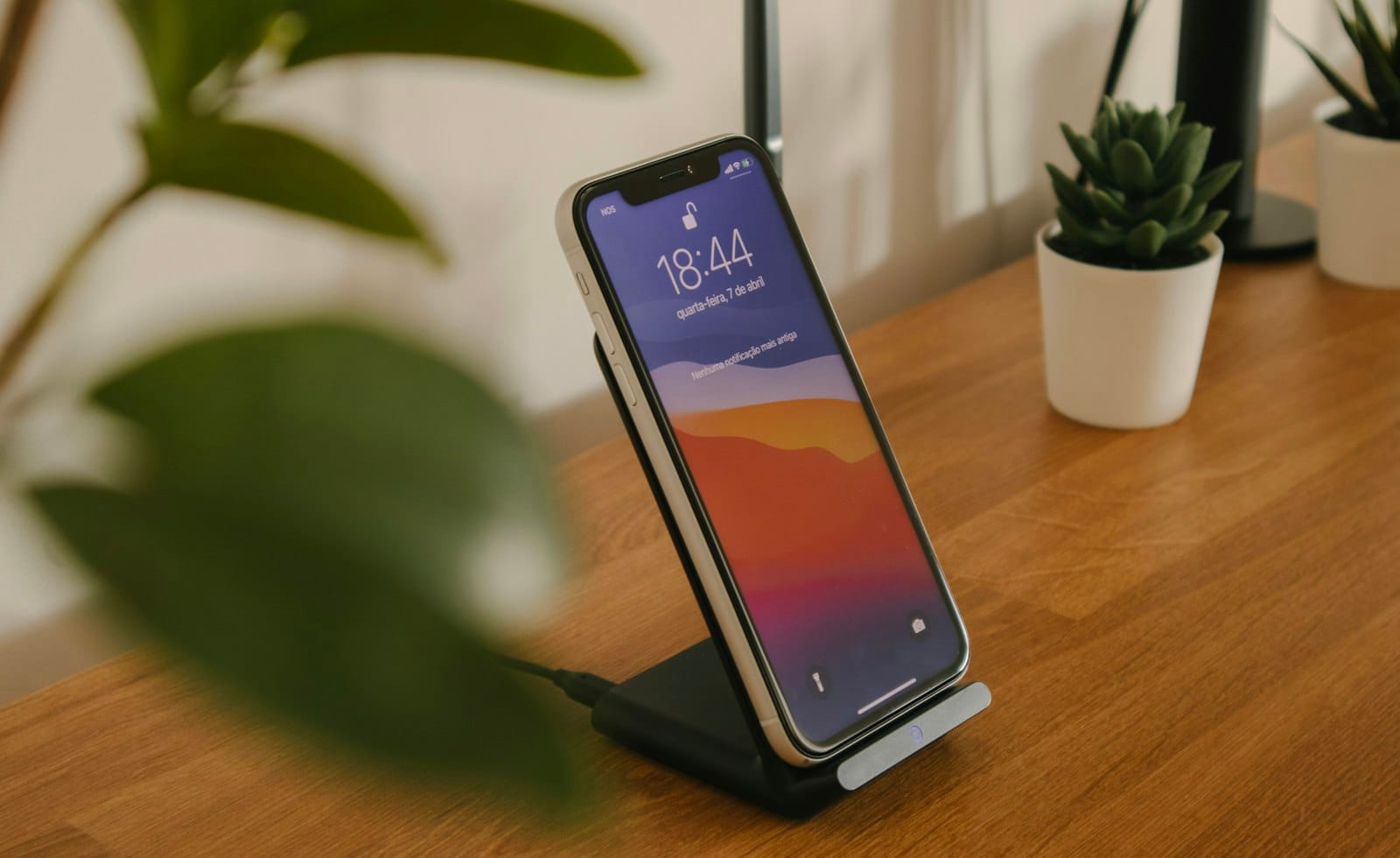
Is your phone storage full again? The quick answer: check which categories use the most space, remove what can be downloaded again, and move the rest of your photos and videos to the cloud or a computer. Most people can free up phone storage in about twenty minutes without losing anything important.
The trick is to stop guessing. Your phone already shows where the gigabytes went, and the biggest culprits are rarely the ones you expect.
Phone Storage Full? Check Where the Space Went
Before deleting anything, look at the numbers. On an iPhone, open Settings, then General, then iPhone Storage. Apple explains in its iPhone storage guide that the screen lists storage categories such as apps, photos, media, messages and system data, along with recommendations you can switch on with one tap. On most Android phones you will find a similar overview under Settings, then Storage.
Write down the top three categories. For most people they are photos and videos, a handful of large apps, and messaging attachments. That short list is your cleanup plan, and it keeps you from wasting time on tiny files.
Fix Photos and Videos First
Photos and videos are usually the biggest slice, especially if you film in high resolution. They are also the easiest place to win back space quickly.
- Delete the obvious clutter: blurry shots, near-identical burst photos and screenshots you no longer need.
- Sort videos by size: a few long clips can take more room than hundreds of pictures. Keep the good ones and delete the rest.
- Empty the recently deleted folder: deleted photos often stay in a trash folder for weeks, so the space does not come back until you empty it.
- Back up before you delete: copy keepers to a cloud service you trust or to your computer, then check that they opened properly.
A routine helps here. Once a month, spend five minutes clearing the last few weeks of photos. It is the same idea as in our guide to organizing your home for a stress-free life: small, regular sessions beat one giant clear-out.
Offload or Remove Apps You Rarely Open
Apps take up more room than their download size suggests, because they collect data and cache files over time. Scroll through your app list sorted by size and ask a simple question for each one: when did I last use this?
On iPhone you can offload an app, which removes the app itself but keeps its documents and data, so it is ready when you reinstall. Android users can use Files by Google, which, according to the Files by Google help page, can clear temporary app files, find duplicate files and suggest unused apps and screenshots to remove.
Games, video editors and offline map or music downloads are the usual heavyweights. Delete what you can download again later.
Tame Messaging Apps and Downloads
Chat apps quietly save every photo, video and voice note you receive. Group chats are the worst offenders. Open the storage or data settings of your messaging apps and look for options to review large files or set old media to clear automatically. Be careful with chats that hold files you may need, and save those separately first.
Also check your downloads folder, offline podcast episodes, streaming downloads and old voicemails. These pile up unnoticed and are safe to clear once you have watched or listened.
Use the Built-In Helpers Wisely
Both major phone systems include tools that clean up automatically, and they are worth a look. Recommendations in the iPhone storage screen can offload unused apps or review large attachments. On Android, Files by Google gives you a list of items to remove with a few taps.
One sensible habit applies to any cleanup tool: read what it is about to delete before you confirm. If a suggestion includes something you are not sure about, leave it for now. Also stay careful about which cleaner apps you install, since the best tools are usually the ones already on your phone. Our post on social media privacy settings covers the same careful approach to app permissions.
Keep Your Phone Storage from Filling Up Again
Once you have cleared space, a few habits keep it that way:
- Turn on automatic cloud backup for photos, then clear the local copies regularly.
- Lower your video resolution if you do not need the highest quality.
- Review your biggest apps every few months.
- Leave some free space on the phone, since a nearly full device tends to feel slow and can fail to install updates.
A tidy phone is also easier to look after in general. If you enjoy keeping devices running well, our walkthrough on how to speed up your WordPress site uses the same measure-then-fix approach.
Frequently Asked Questions
Why does my phone say storage is full when I have deleted lots of photos?
Deleted photos often move to a recently deleted folder first, so the space is not released until you empty it. Cached data and system files can also take a while to shrink.
Is it safe to delete cached data?
Clearing temporary app files is generally safe because apps rebuild what they need. You may have to sign in again or wait for content to reload.
Should I buy a bigger phone or use cloud storage?
For most people, regular cleanup plus a cloud backup is enough. A larger phone only makes sense if you keep many large videos or offline files on the device.
Where to Start Today
Open your storage screen, find the three biggest categories and clear one of them today. Even ten minutes on photos and unused apps can turn a full phone into one with room to spare.